Open Source · v2026.3
CrawBot

Personal Agentic
AI Assistant

CrawBot is your personal AI agent that lives on your desktop. Chat, automate tasks, connect messaging channels, and extend capabilities with 50+ skills — all through a beautiful interface powered by OpenClaw.

CrawBot Chat Interface

Everything you need in your
Personal Agentic AI Assistant

Built on OpenClaw, CrawBot delivers a full-featured AI agent experience with an intuitive desktop interface.

💬

Intelligent Chat

Conversational AI with streaming responses, session management, and multi-model support. Ask questions, write code, brainstorm ideas.

🔧

50+ Built-in Skills

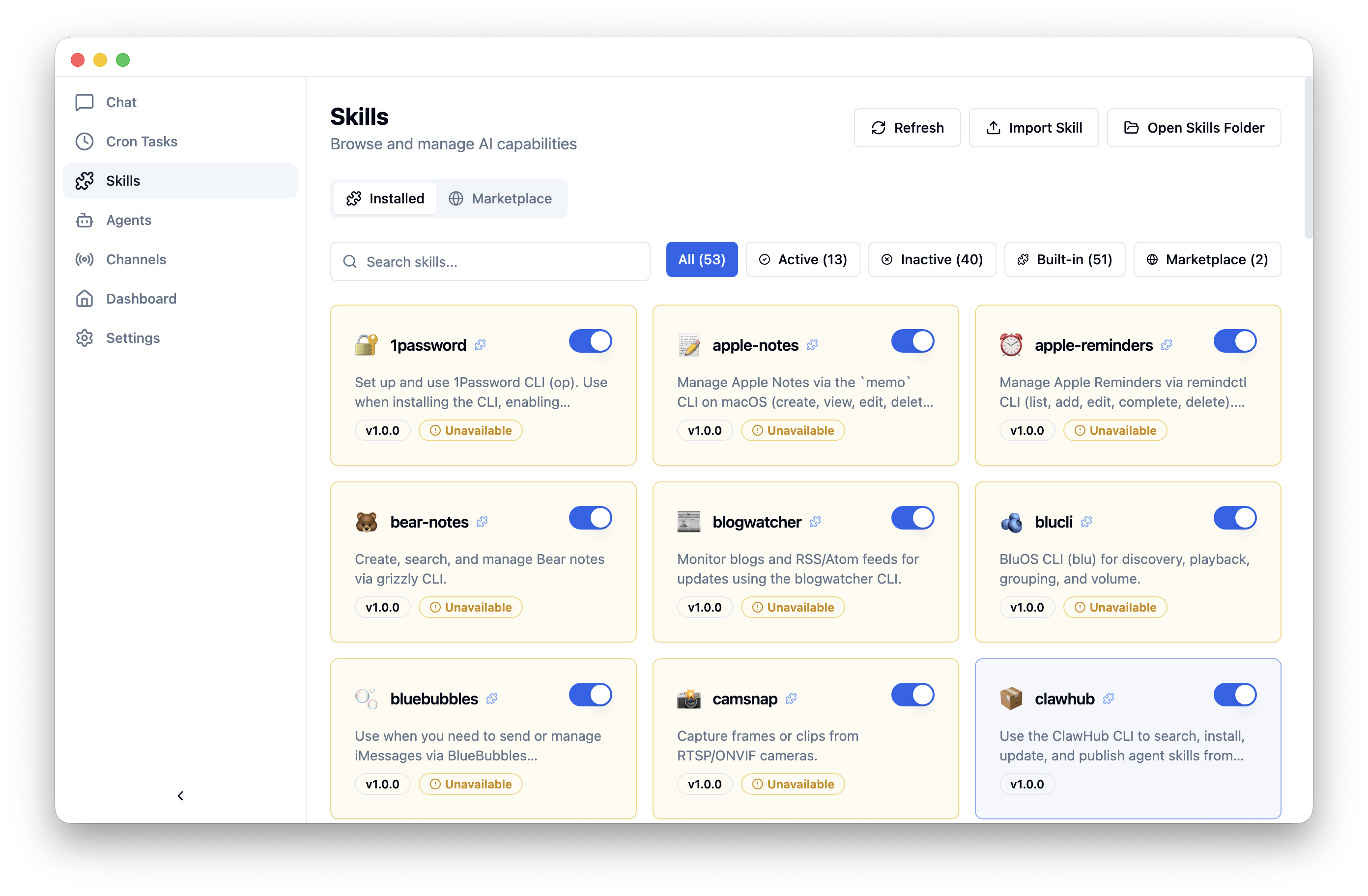
From Apple Notes to 1Password, your agent comes loaded with skills to interact with your apps and services out of the box.

📡

Messaging Channels

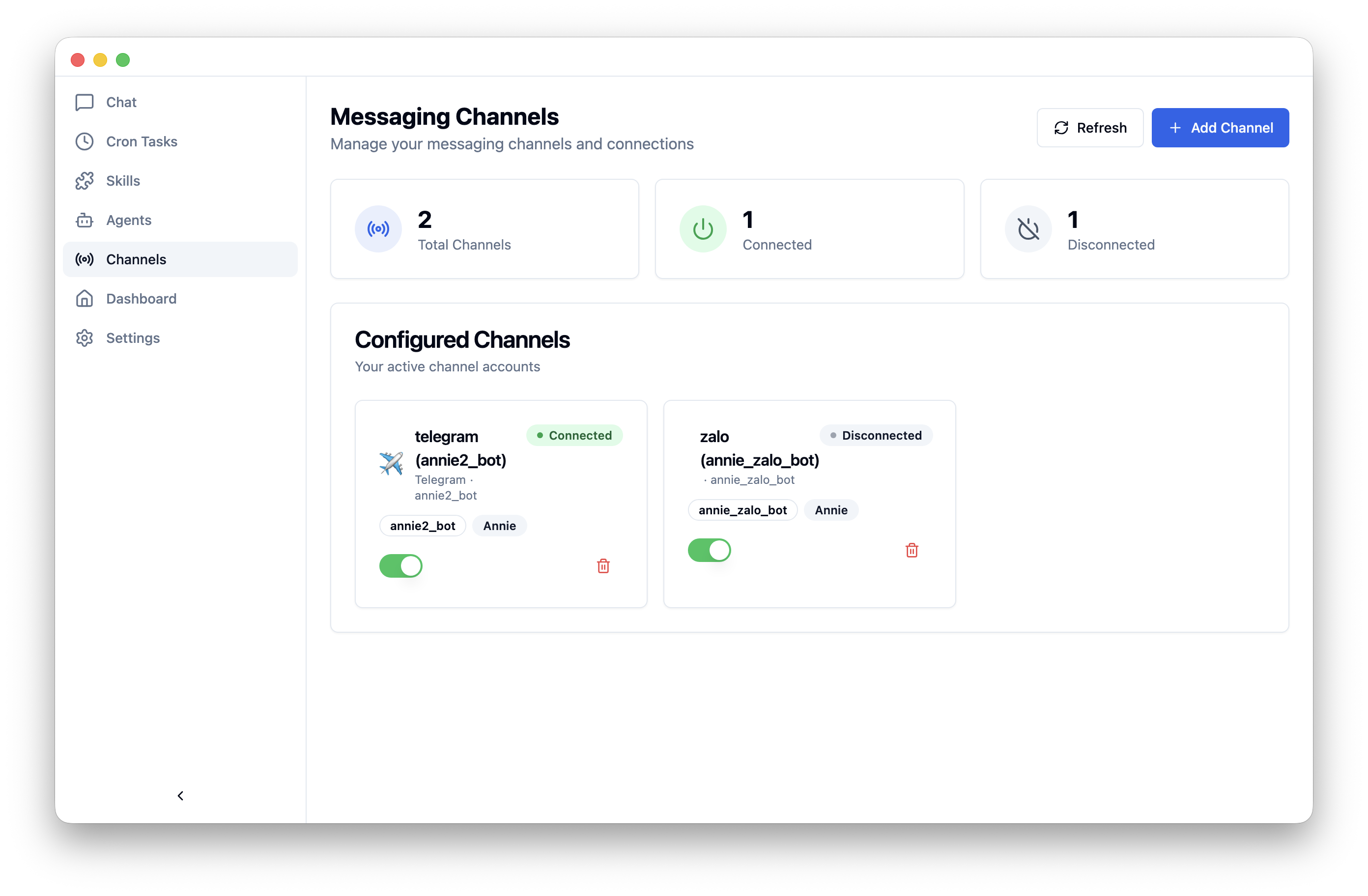
Connect Telegram, Discord, WhatsApp, Feishu/Lark, and Zalo. Your AI agent answers on your behalf across platforms.

Scheduled Tasks

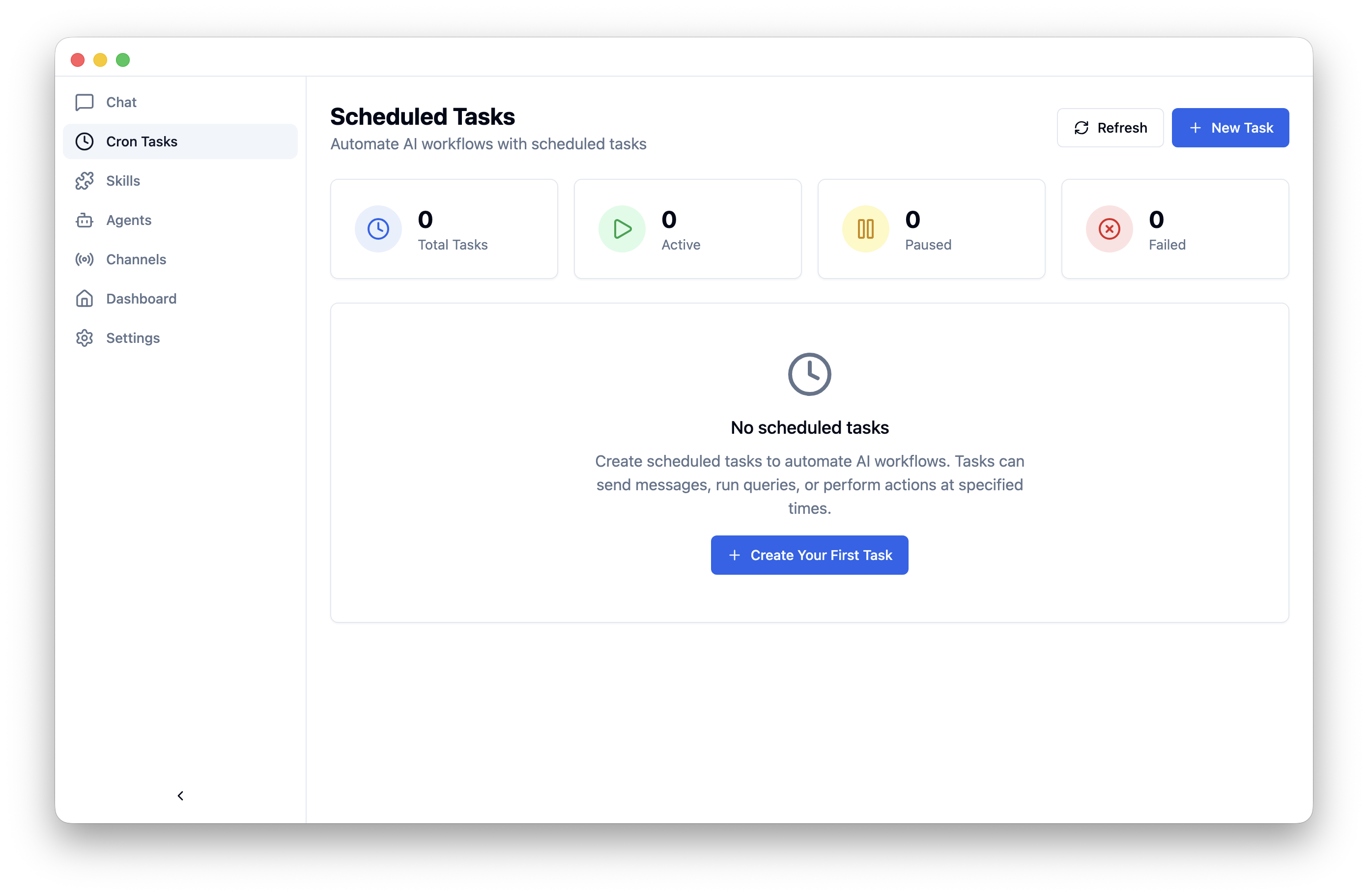
Automate recurring AI workflows with cron-style scheduling. Run queries, send messages, or perform actions on a timer.

🌐

Multi-Provider

Use Google Gemini, Anthropic Claude, OpenAI, Ollama, OpenRouter, and more. Switch models anytime with OAuth or API key auth.

🔒

Private & Secure

Runs locally on your machine. API keys stored in system keychain. No telemetry, no data collection. Your conversations stay yours.

See CrawBot in action

A clean, modern interface designed for productivity and ease of use.

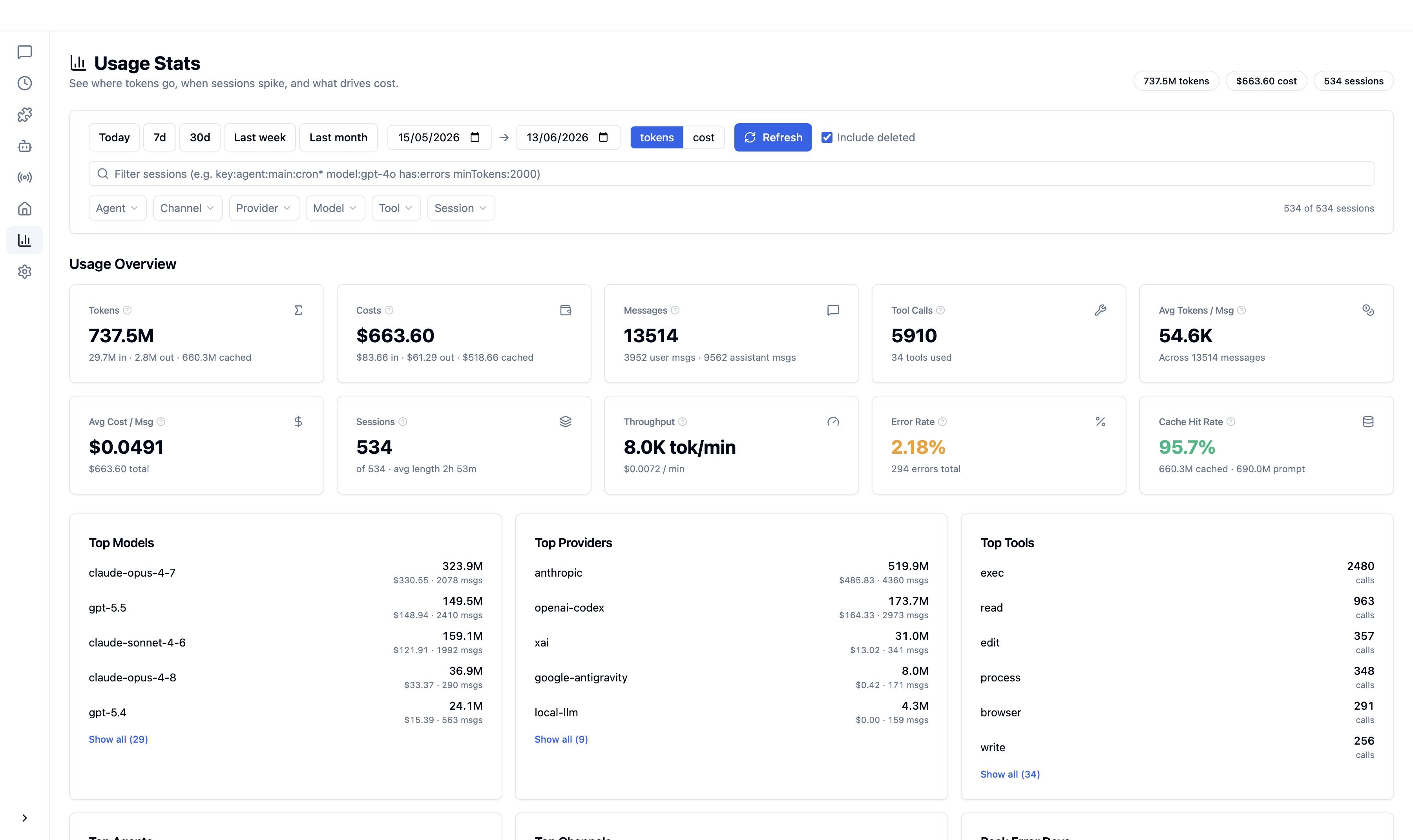
Dashboard

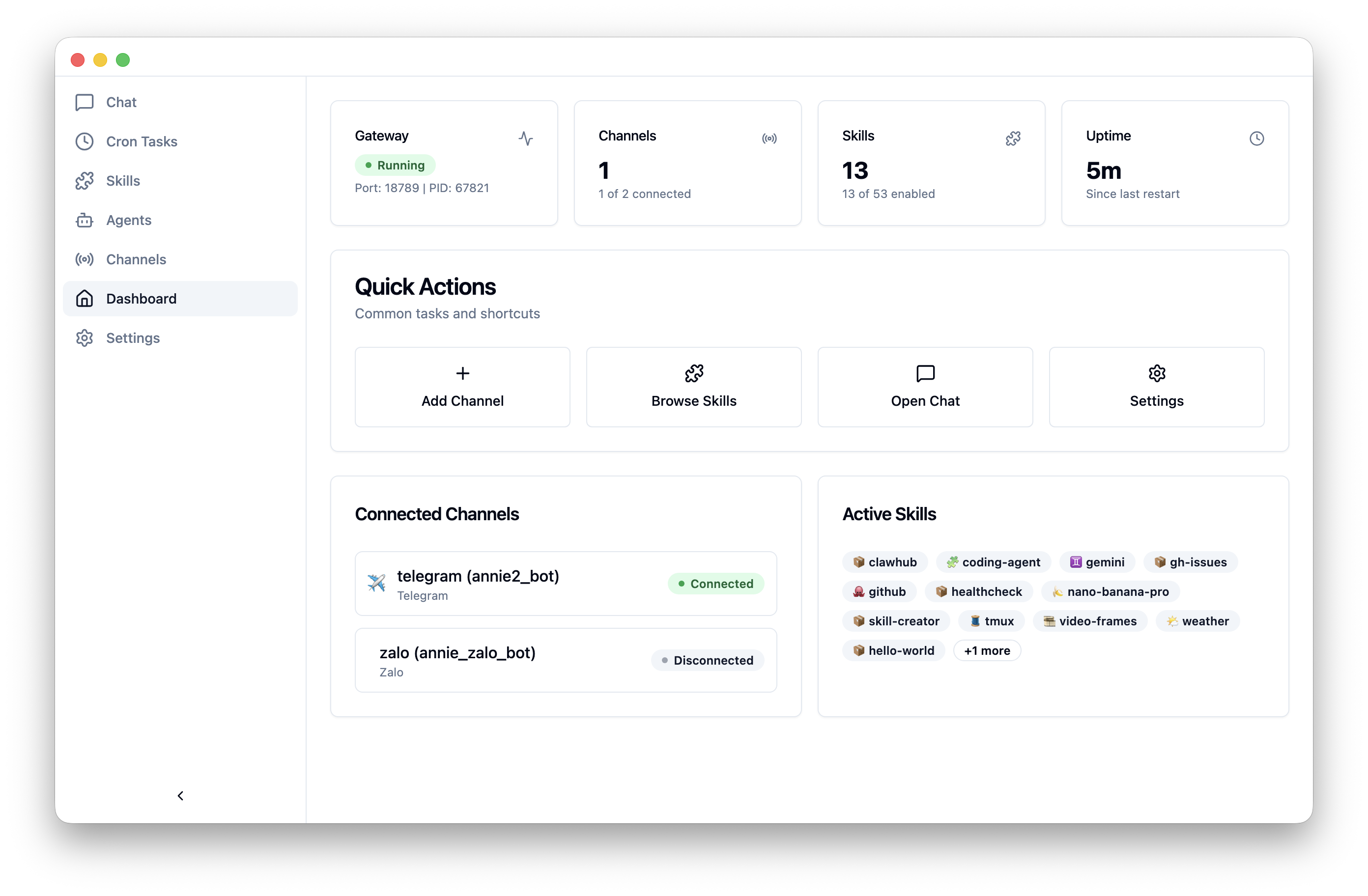
Dashboard

Monitor gateway status, channels, skills, and uptime at a glance.

Skills Manager

Skills Manager

Browse, search, and toggle 50+ built-in skills. Install more from the marketplace.

Messaging Channels

Messaging Channels

Connect Telegram, Discord, WhatsApp, and more in just a few clicks.

Scheduled Tasks

Scheduled Tasks

Create and manage automated AI workflows with cron-based scheduling.

Get CrawBot for your platform

Your Personal Agentic AI Assistant. Free and open source.

🍎

macOS

macOS 12 Monterey or later

Download .dmg
🪟

Windows

Windows 10 or later

Download .exe
🐧

Linux

Ubuntu 20.04+, Fedora 36+, Debian 11+

Download .AppImage

From zero to AI agent in 5 steps

Follow these steps to download, install, and start chatting with your AI agent.

STEP 01

Download & Install

Grab the installer for your operating system and run the setup.

# 1. Download the .dmg file from the download section
# 2. Open the .dmg file
# 3. Drag CrawBot to Applications folder
# 4. First launch: Right-click > Open (bypasses Gatekeeper)

# Or install via Homebrew (coming soon):
brew install --cask crawbot
# 1. Download CrawBot-Setup.exe
# 2. Run the installer
# 3. If SmartScreen warning appears:
# Click "More info" > "Run anyway"
# 4. Follow the installation wizard
# 5. Launch CrawBot from Start Menu
# AppImage (universal):
chmod +x CrawBot-*.AppImage
./CrawBot-*.AppImage

# Debian/Ubuntu:
sudo dpkg -i crawbot_*.deb

# Fedora/RHEL:
sudo rpm -i crawbot-*.rpm
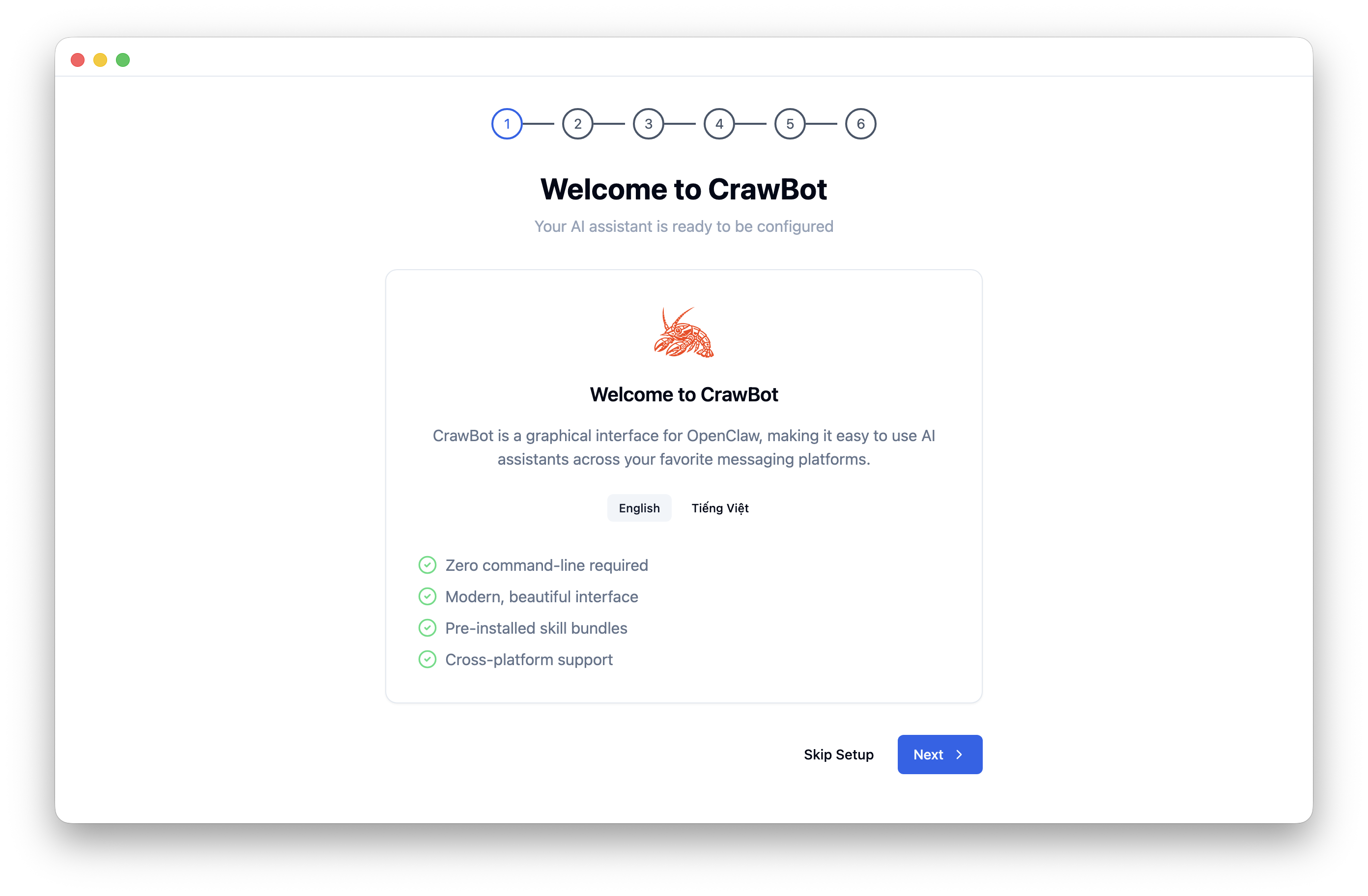
CrawBot Welcome Setup Wizard
STEP 02

Automatic Environment Check

After launching, CrawBot automatically verifies your system. It checks Node.js, Python, CLI tools (Gemini CLI, Claude Code, Codex CLI), and the OpenClaw gateway.

  • 1 CrawBot detects your Node.js runtime and Python version
  • 2 Installs CLI tools for OAuth login (Gemini CLI, Claude Code, Codex CLI)
  • 3 Verifies build tools for native modules (optional)
  • 4 Starts the OpenClaw Gateway service on port 18789
  • 5 All green? Click Next to continue
CrawBot Environment Check
STEP 03

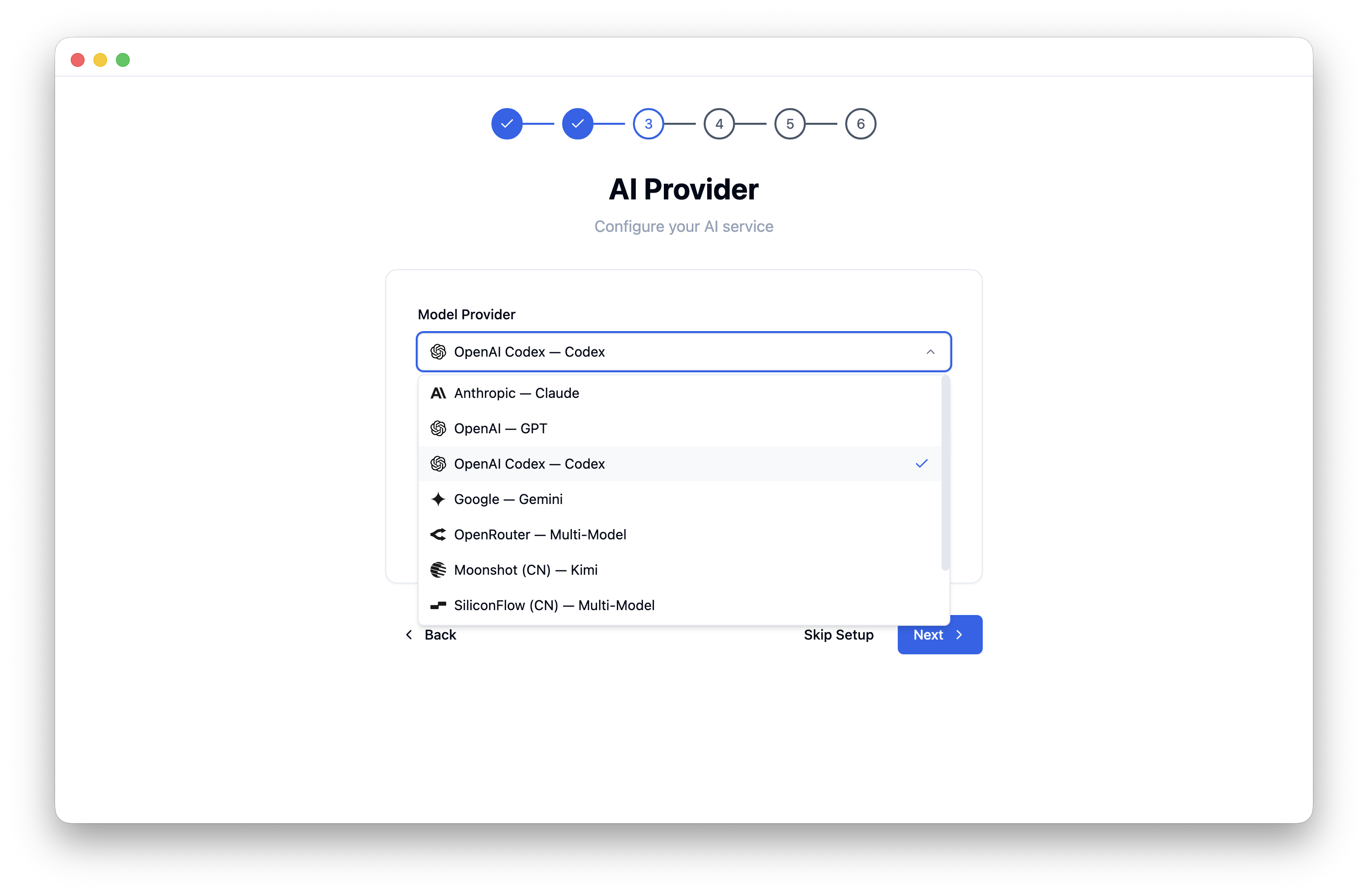
Connect an AI Provider (Google Gemini)

Choose your AI provider. The easiest way to start is with Google Gemini OAuth — no API key needed, just sign in with your Google account.

  • 1 Select Google — Gemini from the Model Provider dropdown
  • 2 Choose a default model (e.g., gemini-2.5-flash)
  • 3 Click Sign in with Google to authenticate via OAuth
  • 4 Authorize in your browser — the provider shows OAuth Active
  • 5 You can add more providers later (Claude, GPT-4, Ollama) in Settings
CrawBot AI Provider Selection
STEP 04

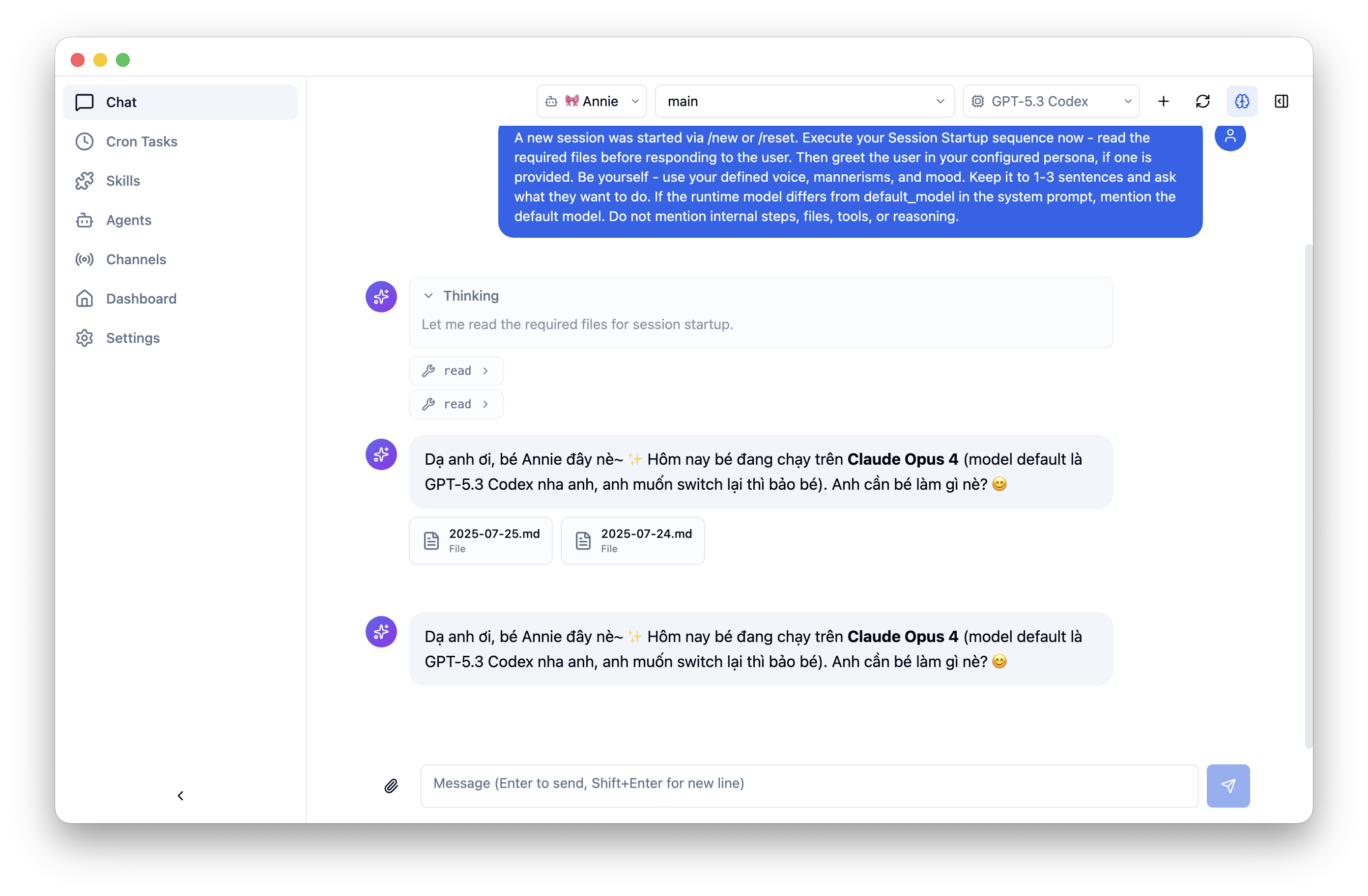
Start Chatting with Your Agent

Setup complete! Navigate to the Chat page and start your first conversation. Your AI agent is ready to help.

  • 1 Click Chat in the sidebar to open the chat interface
  • 2 Select your agent and model from the top toolbar
  • 3 Type your message and press Enter to send
  • 4 The agent can read files, think step-by-step, and use installed skills
  • 5 Use + to start new sessions, or browse history with the clock icon
CrawBot Chat in Action
STEP 05

Explore Skills, Channels & Automation

Take your agent further by exploring built-in skills, connecting your messaging apps, and automating workflows.

  • Browse 50+ skills in the Skills page — toggle what your agent can do
  • Connect Telegram, Discord, WhatsApp, Zalo in the Channels page
  • Set up Scheduled Tasks to automate recurring queries
  • Monitor everything from the Dashboard — gateway, channels, skills, uptime
CrawBot Dashboard

Ready to meet CrawBot?

Your Personal Agentic AI Assistant. Free, open source, and private.

Download CrawBot View on GitHub